Galaxy Z Fold8, Fold8 Ultra and Flip8 privacy guide
Lock down the Galaxy Z Fold8, Fold8 Ultra and Z Flip8: cover screen leaks, app continuity, the 13-try lockout, Galaxy AI, Samsung ad opt-outs and debloat.
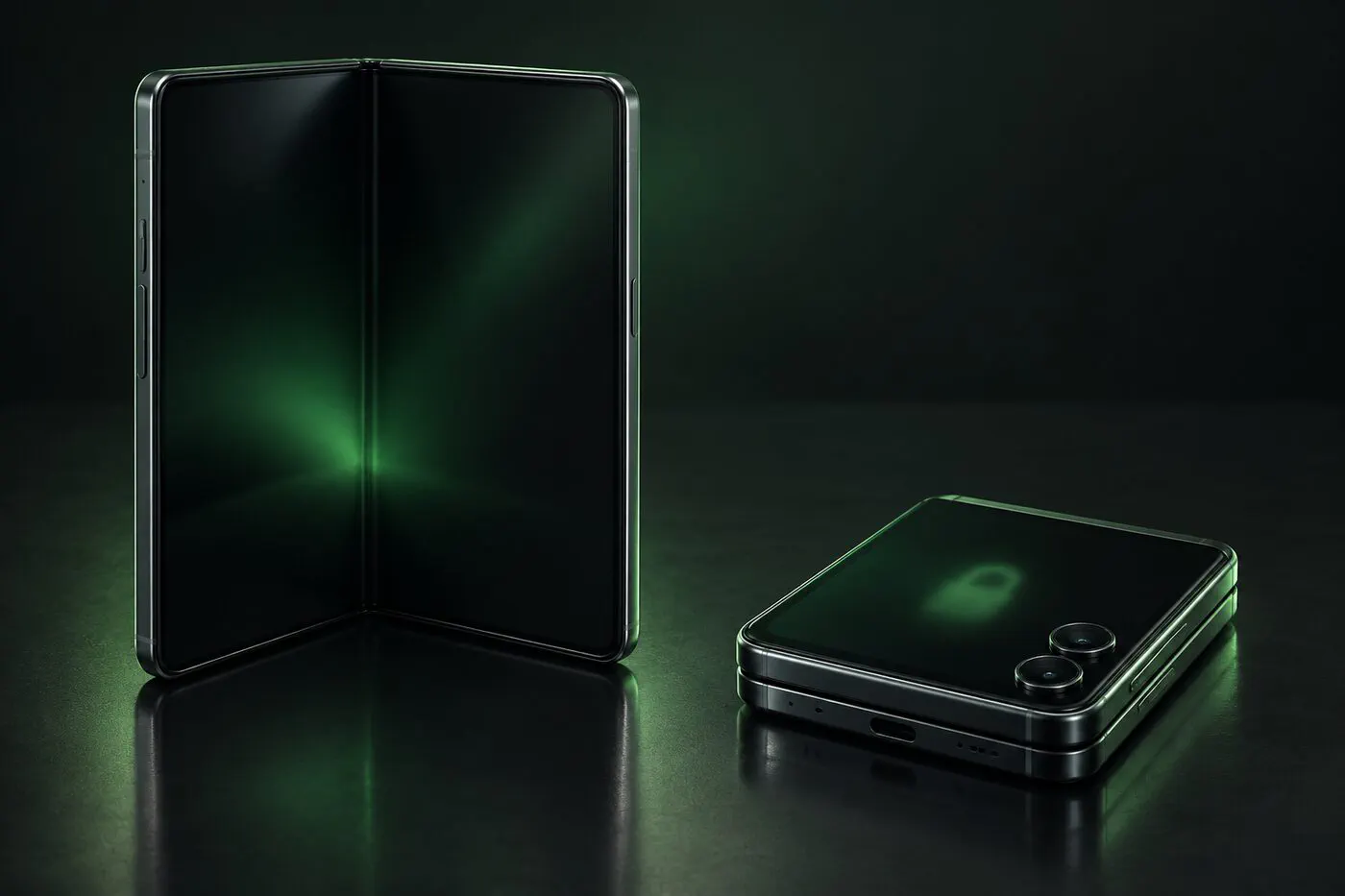
Samsung launched three foldables on July 22, 2026, and they went on sale on August 7. The Galaxy Z Fold8 Ultra ($2,099 at launch) is the tall book-style Fold with an 8-inch inner screen and a 200MP camera. The Galaxy Z Fold8 ($1,899) is the new wide model: a 5.5-inch cover screen that opens into a 7.6-inch 4:3 tablet. The Galaxy Z Flip8 ($1,199) is the clamshell with a 4.1-inch FlexWindow on the outside. All three run One UI 9 on Android 17, use the Snapdragon 8 Elite Gen 5 for Galaxy, and sit on Samsung’s monthly security-update list.
A foldable has two screens, and the second one is where most of its privacy problems live. The cover screen shows notifications, widgets and AI briefings while the phone is closed and locked, and a folded Fold can keep an app running on the outside. This guide starts with those foldable-only settings, then hardens the rest of One UI 9. It’s a standalone companion to our Galaxy S26 Ultra settings walkthrough, which covers the same Samsung software on a regular slab phone.
| Galaxy Z Fold8 Ultra | Galaxy Z Fold8 | Galaxy Z Flip8 | |
|---|---|---|---|
| Launch price (US) | $2,099 | $1,899 | $1,199 (256GB) |
| Inner / cover screen | 8" / 6.5" | 7.6" 4:3 / 5.5" | 6.9" / 4.1" FlexWindow |
| Security updates | Monthly (Samsung list) | Monthly | Monthly |
| Privacy Display | No | No | No |
| Private OS possible | No | No | No |
| Buy (US unlocked) | Check on Amazon for the Galaxy Z Fold8 Ultra | Check on Amazon for the Galaxy Z Fold8 | Check on Amazon for the Galaxy Z Flip8 |
Amazon links are affiliate links: same price for you, small commission for us. Pick the US unlocked model, not a carrier or international version.
What you can and can’t fix on a Galaxy Z8 foldable
You can control the cover screen, Galaxy AI, Samsung’s ad profile, theft protection, the network and most of the preinstalled apps. The hard limits:
- No private OS: US Galaxy phones don’t offer a bootloader unlock, so GrapheneOS and other private systems can’t be installed. No degoogled system supports Samsung’s foldables anywhere.
- No Privacy Display: the screen that hides itself from people beside you is still exclusive to the Galaxy S26 Ultra. None of the three foldables has it, so the bigger screens are easier to read over your shoulder.
- Samsung’s data practices: its US privacy policy says sharing identifiers and online activity with ad partners “may be considered a ‘sale’”. You can opt out; you can’t audit it.
- Google Play Services: it keeps system-level privileges on any stock Android phone.
Samsung says menus “may vary depending on the model and software version.” The paths here are for One UI 9. If one doesn’t match, use the search box at the top of Settings.
Before you start
- Check for updates under Settings > Software update. All three phones shipped with One UI 9, and Samsung began rolling out the October 2026 security patch to all three in October.
- Samsung’s security page lists the Fold8, Fold8 Ultra and Flip8 for monthly updates, with a caveat: “some carriers may only support quarterly updates.” A carrier-bought phone follows the carrier’s schedule.
- Back up photos, contacts and two-factor codes. The next section explains why that matters more on these three than on older Galaxy phones.
1. Know the new 13-try lockout
Phones that launch with One UI 9 count failed unlock attempts much more strictly, and the Fold8, Fold8 Ultra and Flip8 were the first to get the rule. According to SamMobile’s report on Samsung’s policy, the first lockout comes after 5 wrong attempts (1 minute), then 5, 15, 30 and 90 minutes, 4 hours, 12 hours and 24 hours. The 13th wrong attempt locks the phone for good, and the only way back is a factory reset that erases everything on it.
That’s strong protection against someone guessing your PIN. It’s also a new way to lose your data. Three settings make it safer to live with:
- Accidental touch protection: Settings > Display > Accidental touch protection, on. A cover screen in a pocket or bag is easy to tap by accident, and SamMobile notes Samsung hasn’t said whether stray pocket touches count as failed attempts. The phone shows how many tries remain once you reach the warning point.
- A PIN you’ll remember: Android asks for the PIN, pattern or password after every restart and at least every 72 hours, even if you normally use your fingerprint. Don’t pick a code you’ll forget.
- A backup you can restore: turn on Samsung Cloud with end-to-end encryption (section 6) or use another backup, so a permanent lock costs you a reset rather than your photos.
Repeating the same wrong PIN doesn’t count as extra attempts, so a typo doesn’t burn through your tries.
2. The cover screen: what the closed phone shows
Samsung’s support page says the lock screen applies to both screens, so your PIN or fingerprint protects the inside and the outside. What it doesn’t do is hide everything on the cover screen. Pick up any closed Z8 foldable and double-tap it without unlocking: that’s what a stranger sees.
Notifications on both screens
- Open Settings > Notifications > Lock screen notifications (or search Settings for it).
- Choose Hide content (or “Show content when unlocked” if your version offers it). Message previews then need your fingerprint or PIN first.
- Turn off notifications entirely for apps whose very name gives something away, such as a bank, a health app or a dating app.
On the Flip8, swiping right on the FlexWindow opens your notifications. Do that test with the phone locked and check that no message text appears.
Widgets, Now Brief and Wallet on the Flip8
The Flip8’s FlexWindow is built around widgets, apps and AI briefings. Samsung calls it an “AI-native everyday interface”:
- Widgets: swipe left to see them. Calendar, reminders, health and similar widgets can show personal details on the outside of the phone. Touch and hold, tap Edit, and remove anything you wouldn’t want on display. With a screen lock set, Samsung’s page says you unlock the cover screen “when prompted”; widgets are built to be read at a glance, so assume they show without one.
- Now Brief: it appears on the FlexWindow and builds morning, afternoon and evening cards from weather, calendar events, reminders and health data. It needs a Samsung account. Open it, tap the Settings gear, then Content, and switch off the categories you’d rather keep inside. Samsung’s support pages don’t say whether Now Brief waits for an unlock, so check it yourself on the locked phone.
- Samsung Wallet: swiping up on the FlexWindow opens Samsung Wallet once it’s set up. Payments still need your fingerprint or PIN; if you don’t use Wallet, don’t set it up.
- Quick settings: swiping down from the top gives Wi-Fi, Bluetooth, Airplane mode and Mobile data toggles, and Samsung says these “cannot be customized.” That’s why the network lock in section 5 matters.
Continue apps on the cover screen (Fold8 and Fold8 Ultra)
When you close a Fold, the app you were using can move straight to the cover screen, still unlocked. One UI 9 gives you three choices under Settings > Display > Continue apps on cover screen:
- Always: the app opens on the cover screen as soon as you fold the phone.
- Swipe up to continue app: the app moves outside only if you swipe up after folding. Ignore the prompt and the phone stays locked.
- Never: apps never move to the cover screen, and the Fold locks automatically when you close it.
Pick Never if you want folding to work like a lock button, or Swipe up to continue app if you sometimes read on the cover screen. Avoid Always on a phone that leaves your hands. Unfolding behaves differently: apps on the cover screen almost always reopen on the main screen.
Shoulder-surfers and screen protectors
Without Privacy Display, the only physical defence is a privacy filter, and only on the outside. Samsung fits the inner folding screen with a protective film at the factory and warns that removing it can cause touch problems and permanent screen damage, so a privacy protector can’t go there. Several accessory makers sell privacy-tinted protectors for the cover screens of all three phones. They darken the screen at an angle and make the cover screen dimmer for you too.
Browse privacy protectors for Z Fold8 cover screens on Amazon
affiliate link — same price for you, small commission for us
3. Gemini and Galaxy AI on a foldable
These are the first Galaxy phones with Gemini Intelligence, Google’s assistant that can carry out tasks inside more than 40 apps, such as booking a table or finding tickets. In the US and Korea only, it can act on your behalf in those apps. On the Flip8, Samsung built it into the FlexWindow: a press of the side key or a voice request starts it with the phone closed.
- Galaxy AI on the phone: Settings > Galaxy AI, turn on “Process data only on device”. Cloud features such as generative photo edits stop; everything that runs locally keeps working. Samsung says on-device AI data is stored in Knox Enhanced Encrypted Protection (KEEP), with each app’s data encrypted separately.
- Personal Data Engine: Samsung’s footnotes say this data “will be deleted once the Personal Data Intelligence menu is turned off.” If you don’t use the personalised suggestions, search Settings for “Personal Data Intelligence” and turn it off.
- Gemini on the locked phone: in the Gemini app, tap your profile picture > Settings > Gemini on lock screen, and switch off “Use Gemini without unlocking”. With it off, nobody can talk to your assistant through a closed Flip8.
- The side key: if you don’t want Gemini on a long press at all, set Settings > Advanced features > Side button > Long press to the power off menu.
- AI Assistant Activity: One UI 9 adds a dashboard that lists the automations AI agents ran for you. Search Settings for “AI Assistant Activity” and review it once a month, more often if you let Gemini Intelligence act in your apps.
4. Phishing App Risk Alert and Privacy Alerts
Two One UI 9 protections debuted on these phones:
- Phishing App Risk Alert: stops risky apps from opening and prompts you to remove them, even if they were installed some other way. Samsung uses Galaxy Store data and also checks whether an app arrived through remote-control software or around the time of a suspected scam call. Leave it on. If it flags an app, remove the app.
- Enhanced Privacy Alerts: warn you when apps make unnecessary attempts to use background permissions. When one appears, open the app’s permissions from the alert and revoke what it doesn’t need.
Get the next guide in your inbox
One email a week: new degoogling guides, OS and device-support news that matters, and one privacy fix you can do in five minutes. No tracking pixels.
5. Theft protection, Auto Blocker and repairs
- Settings > Security and privacy > Lost device protection > Theft protection: turn on Theft detection lock, Offline device lock, Remote lock and Identity check. Identity check asks for biometrics away from your Safe places and adds a one-hour Security delay before big changes.
- Search Settings for “Lock network” and turn it on so a thief can’t switch on airplane mode without unlocking. Then test it from the outside: close the phone, swipe down on the cover screen and tap Airplane mode. If it switches without asking for a PIN, a thief can take the phone offline before you can track it.
- Settings > Security and privacy > Auto Blocker should be on. It blocks sideloaded apps, USB commands and malicious images in messaging apps. Maximum restrictions at the bottom of that screen goes further: no 2G, no auto-joining non-secure Wi-Fi, no links or preview images in texts, and location stripped from shared photos. Work apps that need a work profile may break.
- Android 17 also includes Google’s Advanced Protection; search Settings for “Advanced Protection” if you want Google’s strictest mode on top of Samsung’s.
- Foldable screens get repaired more often than slab phones. Before handing one in, turn on Settings > Device care > Maintenance mode, which keeps your data out of the technician’s reach.
6. Samsung account, cloud backups and Secure Folder
A Samsung account is optional, but on these phones you’ll probably sign in: Now Brief, Identity check, the Secure Folder reset and several Galaxy AI features need it. If you back up to Samsung Cloud, encrypt it end to end:
- Settings > Security and privacy > More security settings > Enhanced data protection.
- Turn on “Encrypt backup data” and “Encrypt synced data”.
- Store the 28-character recovery code somewhere safe. Samsung doesn’t keep a copy.
Secure Folder (Settings > Security and privacy > More security settings > Secure Folder) gives you a separate locked space for apps and files, which is handy on a Fold that doubles as a work tablet. Samsung no longer supports Secure Folder backups, so keep copies of anything important elsewhere.
7. Samsung’s ad profile and diagnostics
- Send diagnostic data: Settings > Security and privacy > More privacy settings > Samsung, off.
- Customization Service: collects app usage, Samsung Internet browsing, location and voice. Search Settings for “Customization”, turn off the ad consents, and delete the collected data at privacy.samsung.com.
- Sale and sharing opt-out: file it through Samsung’s privacy rights request page and the Samsung Do Not Sell or Share form.
- Google ads: Settings > Google > All services > Privacy & security > Ads > Delete advertising ID. At myaccount.google.com/activitycontrols, turn off or auto-delete Web & App Activity.
- Bixby: Settings > Advanced features > Bixby > Leave Bixby, then Settings > Apps > Bixby > Disable.
8. Network and permissions
- Private DNS: Settings > Connections > More connection settings > Private DNS, set to a filtering resolver, and turn off Nearby device scanning on the same screen. Our Private DNS and permission lockdown explains how to pick one.
- Permission manager: Settings > Security and privacy > Privacy > Permission manager. Review Camera, Microphone and Location, and check the 24-hour and 7-day history.
- Secure Wi-Fi: Samsung’s free VPN under More security settings moves your trust from the hotspot to Samsung. It’s an option, not a fix.
9. Debloat with ADB
Our ADB bloat removal walkthrough covers the setup. Turn Auto Blocker off while you work (it blocks USB commands) and back on afterwards.
Commonly disabled with adb shell pm disable-user --user 0 <package>: com.samsung.android.bixby.agent, com.samsung.android.visionintelligence, com.facebook.appmanager, com.facebook.services, com.facebook.system, com.microsoft.skydrive, com.linkedin.android, com.samsung.android.rubin.app (Customization Service) and com.samsung.android.knox.analytics.uploader.
Leave com.samsung.android.fmm (Find), com.samsung.android.knox.containercore (Secure Folder) and com.samsung.android.samsungpass alone, and never remove com.sec.android.soagent, com.wssyncmldm (updates) or com.samsung.android.kgclient. Package names on a new phone can change, so check each one with adb shell pm list packages | grep <name> before you disable it. Carrier models add their own: com.att.iqi and com.att.dh on AT&T, com.tmobile.echolocate on T-Mobile, com.verizon.obdm on Verizon.
10. Carrier ad programs
- Verizon: Custom Experience is on by default. Switch it off in My Verizon > Privacy preferences.
- AT&T: opt out at att.com/PrivacyChoices.
- T-Mobile: turn off “Relevant Ads” and “Analytics and Reporting” in the Privacy Dashboard.
Block apps from the internet with Rethink
One UI can hold an app to Wi-Fi only (Settings > Connections > Data usage > Allowed networks for apps) or stop its background mobile data, but it can’t cut an app off completely. For that, the Z Fold8, Fold8 Ultra and Flip8 need a firewall app. Our pick is Rethink (“Rethink: DNS + Firewall + VPN”): free, open source, no root, and it filters traffic on the phone itself.
- Install Rethink from Google Play. Auto Blocker blocks installs from other sources, and apps from those sources can’t update while it’s on.
- Open it, keep the “DNS and Firewall” mode, tap Start and accept Android’s VPN request.
- Configure > Apps: block Wi-Fi and mobile data for apps that work offline (Gallery, Calculator, Voice Recorder, the keyboard, offline games), and only mobile data for photo backup.
- Turn Android’s Private DNS off (Settings > Connections > More connection settings > Private DNS > Off). Rethink warns that Private DNS overrides its own DNS, so choose your filtering resolver under Configure > DNS instead.
- Settings > Connections > More connection settings > VPN, tap the gear next to Rethink, and turn on Always-on VPN and Block connections without VPN.
- Settings > Apps > Rethink > Battery > Unrestricted, so One UI doesn’t put it to sleep.
Android runs one VPN at a time, so load your VPN provider’s WireGuard settings into Rethink if you use one. Apps inside Secure Folder aren’t covered, devices on your hotspot bypass it, and if Wi-Fi calling breaks, set the carrier’s apps to “Bypass DNS & Firewall”. For a simpler firewall, see our NetGuard vs Rethink comparison.
How anonymous can a Galaxy Z8 foldable get?
While the phone is on, your carrier knows roughly where it is. The EFF puts it plainly: “There is no way to hide from this kind of tracking as long as your mobile phone is powered on.” No setting changes what the network sees. You can cut what advertisers, apps and the people around you see:
- Device name: Settings > About phone > Device name. It’s visible to nearby Bluetooth and Wi-Fi devices, so don’t use your own name.
- Quick Share: Settings > Connected devices > Quick Share > Who can share with you: Contacts or Your devices. Everyone switches back after 10 minutes.
- Wi-Fi address: tap the gear next to each saved network and check that MAC address type reads Randomized MAC.
- Photo location: Camera > Settings > Location tags, off. When sharing older photos from Gallery, tick Remove location data.
- Finding networks: Samsung’s Offline finding (Settings > Security and privacy > Lost device protection) makes your phone a node that helps locate other people’s devices; if you keep it, turn on Encrypt offline location. Google’s Find Hub network has its own switch under Settings > Google > All services > Find Hub > Find your offline devices; Without network keeps you out of the crowd.
- Browsing: use Secret mode in Samsung Internet, or Tor Browser for anything you don’t want tied to your connection. A VPN that needs no email, such as Mullvad or IVPN, hides your browsing from the carrier and the Wi-Fi owner, not your location from the cell network.
- Airplane mode: the only real break from cell tracking. It doesn’t erase what the carrier logged before you switched it on.
Is a Galaxy foldable the right privacy phone?
If you want a foldable with long monthly support and a lot of control over Samsung’s software, yes, once you’ve worked through this list. If you want Google out of the operating system, no Samsung foldable can do it. Google’s own Pixel 10 Pro Fold runs GrapheneOS; the step-by-step GrapheneOS web installer guide shows what that involves, and our Pixel 10 Pro buying page covers the non-folding version.
Which of the three? The Fold8 Ultra has the best cameras (200MP main plus a 3x telephoto) and the largest inner screen. The wide Fold8 gives the same privacy settings for $200 less, without the telephoto lens. The Flip8 costs the least, but its FlexWindow shows more on the outside, so the cover-screen steps above matter most there.
Check the unlocked Galaxy Z Fold8 Ultra on Amazon
affiliate link — same price for you, small commission for us
Check the unlocked Galaxy Z Fold8 on Amazon
affiliate link — same price for you, small commission for us
Check the unlocked Galaxy Z Flip8 on Amazon
affiliate link — same price for you, small commission for us
Quick checklist
- Latest One UI 9 security patch installed
- Accidental touch protection on; PIN you’ll remember; backup working
- Lock screen notifications set to hide content; locked cover screen checked
- Flip8: widgets and Now Brief content trimmed; Wallet only if you use it
- Fold8 / Fold8 Ultra: Continue apps on cover screen set to Never or Swipe up
- “Process data only on device” on; Gemini without unlocking off; side key decided
- AI Assistant Activity reviewed
- Theft protection, Identity check and Lock network on; airplane-mode test done
- Auto Blocker on; Maximum restrictions decided
- Enhanced data protection on, recovery code stored
- Samsung diagnostics and Customization Service off; opt-out filed; advertising ID deleted
- Private DNS (or Rethink’s DNS) set; bloat disabled; carrier ads off
- Rethink blocking offline apps; Always-on VPN and Block connections without VPN on
- Device name, Quick Share, randomized MAC and camera location checked
For Samsung’s non-folding phones, see the privacy guides for America’s best-selling Android phones.