Moto g 2026 privacy guide: what to turn off and what to keep
Make the moto g 2026 more private: turn off Smart Feed promos, disable Facebook and LinkedIn, then tighten Google, AI, location and lock settings.
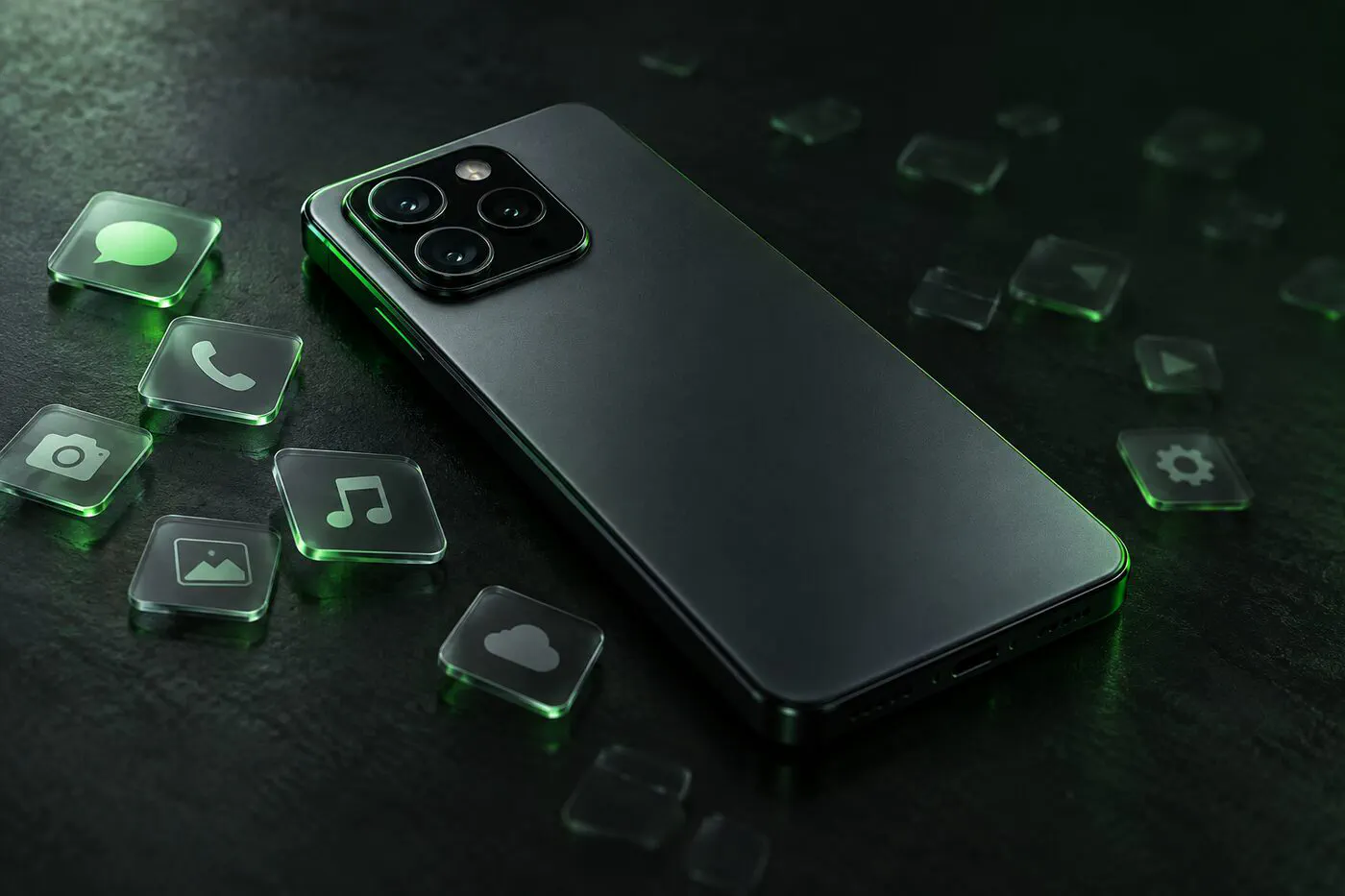
The moto g 2026 is Motorola’s mainstream budget phone: a 6.7-inch 120Hz screen, a 5,200 mAh battery, a Dimensity 6300 chip and Android 16, usually around $250 to $300 on Amazon. Motorola is the third-biggest phone brand in the US, with about 11% of the market, and this is the model a lot of its buyers pick when they want something better than the cheapest option without paying flagship prices.
Out of the box it sends more than you’d expect from near-stock Android. Motorola’s Smart Feed can show promoted app suggestions, and the phone may ship with Facebook, LinkedIn and a Games app. No private operating system supports it, so the job is to harden the stock software. Below is what to turn off, and what’s worth keeping on. It’s one entry in our series covering the top 10 Android phones sold in the US.
| Why it's on the list | Motorola is the US's #3 phone brand (about 11% share) and the only big brand still growing |
|---|---|
| Price (Oct 2026) | around $250–300 on Amazon |
| Updates | Security updates to December 2028 |
| Best privacy setup | Stock Android, hardened |
See the Motorola moto g 2026 on Amazon
affiliate link — same price for you, small commission for us
The short version
- Fixable: Smart Feed and promoted recommendations, preloaded social apps, Google ad tracking, location sharing (including a carrier location switch), lock screen leaks, carrier ad programs.
- Not fixable: Google Play Services keeps its system privileges, and the Moto Secure app collects usage metrics with no opt-out listed in Motorola’s privacy statement.
- No private OS: Motorola has a bootloader unlock program, but no GrapheneOS, LineageOS, CalyxOS, /e/OS or iodéOS build exists for any 2025 or 2026 moto g. Carrier-exclusive models (Motorola names Verizon, AT&T and Tracfone) can’t join the program at all. Unlocking voids the warranty and, per Motorola, may cost you encryption support and DRM-protected content.
Motorola and GrapheneOS did announce a partnership in March 2026, and it’s real news for privacy buyers, but it covers future flagships first. Here’s what’s confirmed about the Signature 27 and GrapheneOS. GrapheneOS says budget models could come later, once their chips meet its requirements. Don’t buy a moto g 2026 expecting that.
Before you start
Update first: Settings > System updates > Check for updates. Motorola lists security updates for the moto g 2026 until December 2028, “at least bi-monthly,” with Android 17 as the next OS upgrade, and it says plainly that this “may vary” and isn’t a commitment. Updates can’t be rolled back.
Then back up your photos and contacts. Motorola notes that menus vary by model and software version; if a path below doesn’t match, use the search bar at the top of Settings.
1. Smart Feed: where the promoted picks come from
Smart Feed is the part of the moto g 2026 most people don’t know about. Motorola’s privacy statement says it covers the Newsfeed, “Daily Drops,” app recommendations in the app tray, and experiences in the Games folder. It also says those recommendations “may be promoted, sponsored, monetized” through partners such as Device Native (DNA), and that Motorola shares click and impression data and advertising IDs with them.
In plain terms: some of the apps the phone suggests are ads, and what you tap on gets reported.
Motorola says Smart Feed can be turned off “where supported.” On recent versions:
- Open Settings > Apps > See all apps.
- Find Smart Feed in the list and tap it.
- Tap Disable.
If Smart Feed isn’t listed, search Settings for “Smart Feed.” Deleting your advertising ID (step 4) also cuts the ID that gets shared.
2. Facebook, LinkedIn and Games
Motorola’s list of apps that “may be pre-installed” on the moto g 2026 includes Facebook, LinkedIn, Games, Smart Connect, Motorola Notifications and Moto Secure, plus Google’s apps such as Gemini, Chrome, Gmail, Maps and Photos.
Motorola says preloaded apps can’t be deleted, but they can be disabled at Settings > Apps > See all apps > [app] > Disable. A sensible split:
| App | Suggestion |
|---|---|
| Disable unless you use it; if you do, the website in a private browser shares less | |
| Disable unless you use it | |
| Games | Disable; it’s one of the places Smart Feed shows recommendations |
| Smart Connect | Disable if you don’t link the phone to a Lenovo PC or tablet |
| Motorola Notifications | Open it first and unsubscribe from Motorola’s marketing messages |
| Moto Secure | Keep: it holds the lock settings in step 6 |
Facebook installs background helpers too. On Android generally, com.facebook.appmanager, com.facebook.services and com.facebook.system are listed as safe to disable by community debloat lists. Motorola doesn’t document package names, so take them from a curated list and use the commands in our no-root ADB bloatware guide.
3. Motorola’s own data switches
Two optional programs appear during setup: “Enhanced Device Support” and “Help Improve.” Motorola’s privacy statement says you can turn both off later, but it doesn’t give a menu path. Search Settings for “Help improve” and “Enhanced device support” and turn them off. Usage data from Family Space is only collected when these programs are on.
4. Google account and ads (standard Android)
The moto g 2026 uses Google’s standard Android settings for ads and accounts. These are the standard Android paths:
- Ads privacy: Settings > Google > All services > Privacy & security > Ads > Ads privacy. Turn off Ad topics, App-suggested ads and Ad measurement, and delete the advertising ID on the Ads page.
- Usage & diagnostics: Settings > Google > ⋮ > Usage & diagnostics, off.
- Activity: at myactivity.google.com, pause Web & App Activity and YouTube history. If you see the newer “Search Services History” and “Personalized Recommendations” controls, set those too.
- Voice Match: myaccount.google.com > Data & privacy > Voice Match, off, unless you use hands-free “Hey Google.”
5. AI on the moto g 2026
Motorola’s own Moto AI isn’t preinstalled on this phone. Google’s Gemini is. If you use Gemini, decide what it keeps:
- Open the Gemini app and tap your profile picture.
- Tap Gemini Apps Activity and turn it off. Delete past activity, or do it at myactivity.google.com/product/gemini.
Two caveats from Google’s help page: chats are kept for up to 72 hours even with activity off, and chats selected for human review can be kept for up to three years. Don’t paste anything into Gemini you wouldn’t email to a stranger.
6. Lock screen and theft
Open the Moto Secure app, or Settings > Security & privacy > Device unlock and tap the gear next to Screen lock:
- Lock Network and security: on. A thief then can’t switch on airplane mode, turn off location or power the phone down from the lock screen without your PIN.
- PIN pad scramble: on, if you use a PIN.
- Power button instantly locks: keep it on.
Under Settings > Security & privacy > Privacy controls, turn off “Show passwords.” At Settings > Home & lock screen > Lock screen > Privacy, hide sensitive notification content.
Google’s theft protection is a standard Android feature delivered through Google services: Settings > Google > All services > Personal & device safety > Theft protection, where you’ll find Theft Detection Lock, Offline Device Lock and Remote Lock. If that path differs on your phone, search Settings for “Theft protection.”
Moto Secure on some Motorolas offers a Secure folder for hidden apps. The moto g 2026’s help pages don’t list it, so check the Moto Secure app before relying on one.
7. Permissions and location
- Settings > Security & privacy > Privacy controls > Permission manager: review Location, Camera, Microphone and Contacts.
- Settings > Location > App location permissions: set most apps to “Only while using” or “Don’t allow.”
- In Location’s advanced options, turn off Carrier Location Access (Motorola says it serves carrier services and analytics), plus Wi-Fi scanning and Bluetooth scanning.
- The quick settings camera and microphone toggles block both sensors for every app at once.
Get the next guide in your inbox
One email a week: new degoogling guides, OS and device-support news that matters, and one privacy fix you can do in five minutes. No tracking pixels.
8. Network settings
- Private DNS: Settings > Network & internet > Private DNS, then a filtering provider’s hostname. Our guide to Private DNS and permission lockdown has picks.
- 2G: search Settings for “2G” (Android 16 calls it “2G network protection,” in your SIM’s settings) and turn 2G off.
- VPN: Settings > Network & internet > VPN, if you use one.
9. Carrier ad programs
- Verizon: Custom Experience is on by default; turn it off in My Verizon > Privacy preferences or call 866-211-0874.
- AT&T: att.com/PrivacyChoices for personalized ads, att.com/cpni/optout for CPNI.
- T-Mobile: Privacy Dashboard, “Do not sell or share” on, “Advertising and analytics” off.
Block apps from the internet with Rethink
Motorola gives you two partial tools. Moto Secure > Network protection > Wi-Fi blocklist keeps the apps you pick off open (no-password) Wi-Fi only. Each app’s Background data switch (Settings > Network & internet > SIMs & mobile network > [your SIM], tap the data-used bar, then the app) only covers mobile data in the background. To block an app on every network, the moto g 2026 needs a firewall app. Our pick is Rethink, listed in the stores as “Rethink: DNS + Firewall + VPN”. It’s free, open source (Apache-2.0) and needs no root. It works as a local VPN: traffic is filtered on the phone and goes nowhere else unless you add a VPN server yourself.
- Install Rethink from Google Play or F-Droid; the F-Droid build is usually a version behind.
- Open it, keep the default mode, “DNS and Firewall”, tap Start and accept Android’s VPN request.
- Go to Configure > Apps. Every app has a Wi-Fi switch and a mobile-data switch. Block both for apps that work offline: the gallery, calculator, recorder, a local notes app, the keyboard and offline games. Block only mobile data for photo backup.
- Turn Android’s Private DNS off: Settings > Network & internet > Private DNS > Off. Rethink warns that Private DNS overrides its own DNS, so pick your filtering resolver under Configure > DNS instead. You keep the blocking and gain a per-app log.
- Open Settings > Network & internet > VPN, tap the gear next to Rethink, and turn on Always-on VPN and Block connections without VPN. If Rethink ever stops, apps lose the network instead of slipping past it.
- Motorola’s battery care is known to close background apps. Open Settings > Apps > Rethink > App battery usage and allow unrestricted background use, and turn off “Reduce battery drain when inactive” under Battery saver > Schedule and reminders. Motorola’s own fix for VPNs that keep dropping also applies: Settings > Apps > Special app access > Unrestricted mobile data, on for Rethink.
Leave it running for a day, then open Rethink’s logs to see which apps connect where. A few catches:
- Android runs one VPN at a time. Rethink can carry your VPN provider’s WireGuard settings, so you can keep both the firewall and the VPN.
- Devices on your hotspot bypass it.
- If Wi-Fi calling or Android Auto stops working, set the apps involved to “Bypass DNS & Firewall” in Rethink’s app list.
NetGuard is the simpler, firewall-only alternative. Our NetGuard and Rethink side-by-side compares them.
How anonymous can the moto g 2026 get?
Start with the hard limit. While the phone is on, your carrier knows roughly where it is. The EFF puts it plainly: “There is no way to hide from this kind of tracking as long as your mobile phone is powered on.” In April 2024 the FCC fined T-Mobile, AT&T, Verizon and Sprint nearly $200 million for selling customers’ location data, and in June 2026 the Supreme Court upheld the AT&T and Verizon fines. No phone setting changes what the network sees. What you can cut is the trail to advertisers, apps and the people around you.
People nearby
- Device name: Settings > Connected devices, tap +, then Device name. Bluetooth devices see it, so keep your own name out of it. The hotspot has its own name under Settings > Network & internet > Hotspot & tethering > Wi-Fi hotspot > Hotspot name.
- Quick Share: Settings > Connected devices > Connection preferences > Quick Share, then Settings > Who can share with you. Pick Your devices or Contacts, and turn off “Visible to nearby devices” when you aren’t receiving anything.
- Wi-Fi address: Android gives each network a random MAC address by default, but keeps the same one for that network until a factory reset. Networks saved long ago may still use the real one: tap the gear next to a saved network and check that it uses a randomized MAC.
Photos and finding networks
- Camera: in the Camera app’s settings, turn off Save location. New photos then carry no GPS position.
- Sharing older photos: strip the location before sending, or share them through Google Photos, which leaves locations out of shared links by default.
- Google’s Find Hub network: Settings > Google > All services > Find Hub > Find your offline devices. The options are Off, Without network, With network in busy places only and With network everywhere. By default your phone joins the crowd network that locates other people’s devices; Without network keeps it out. The cost of opting out is that a lost phone is harder to find once it goes offline.
Your number and accounts
- Prepaid lines: no federal law requires ID to buy prepaid service today. That may change: a May 2026 FCC proposal (FCC 26-27, aimed at robocalls) would have voice providers collect your name, address and ID number, and it was still open in October 2026. Either way, paying by card or giving an email at checkout ties the line to you.
- Wi-Fi calling: when you switch on Wi-Fi calling, your carrier asks for an emergency (E911) address and keeps it on file. If you don’t want your home address tied to the account, leave Wi-Fi calling off.
- Accounts: Google Play needs a Google account. Aurora Store (from F-Droid) can install Play apps with shared anonymous accounts, but F-Droid flags it because your app list and device details still go to Google’s servers.
- Sign-ups: use email aliases for apps and shops. SimpleLogin’s free plan gives 10 aliases, and addy.io offers unlimited standard aliases on its free tier. Both forward to your real inbox, so the alias service itself still knows who you are.
Browsing and traffic
- Tor Browser for Android: the Tor Project’s official app, on Google Play and F-Droid. Use it for searches and sites you don’t want tied to your connection.
- A VPN that doesn’t need your email: Mullvad issues a random account number and takes cash by post or Monero; IVPN generates an account ID and also takes cash. Load its WireGuard settings into Rethink and the firewall keeps working. A VPN hides your browsing from the carrier and Wi-Fi owner, not your location from the cell network.
- Tor for chosen apps: Rethink has a one-tap Orbot option that sends traffic through Tor. Install Orbot first.
- Airplane mode: the GrapheneOS FAQ calls it “the only way to avoid the cellular network tracking your device.” It doesn’t erase what the carrier logged before you switched it on, but it’s the honest answer for a sensitive trip.
Quick checklist
- Updated, backed up
- Smart Feed disabled, advertising ID deleted
- Facebook, LinkedIn and Games disabled; Motorola marketing unsubscribed
- Help Improve and Enhanced Device Support off
- Web & App Activity, YouTube history and Gemini Apps Activity off
- Lock Network and security on, sensitive notifications hidden
- Theft protection checked
- Carrier Location Access off, app location trimmed
- Private DNS (or Rethink’s DNS) set, 2G off
- Carrier opt-outs done
- Rethink blocking offline apps; Always-on VPN and Block connections without VPN on
- Device name, Quick Share, randomized MAC checked
- Camera location off; Find Hub network choice made
That’s about as private as a moto g 2026 gets today. If you want a phone that can go further, a Pixel such as the Pixel 9a runs GrapheneOS. To see how this phone ranks against the rest, head back to the full US best-sellers privacy list.
Check the unlocked moto g 2026 on Amazon
affiliate link — same price for you, small commission for us