Google Pixel 9a
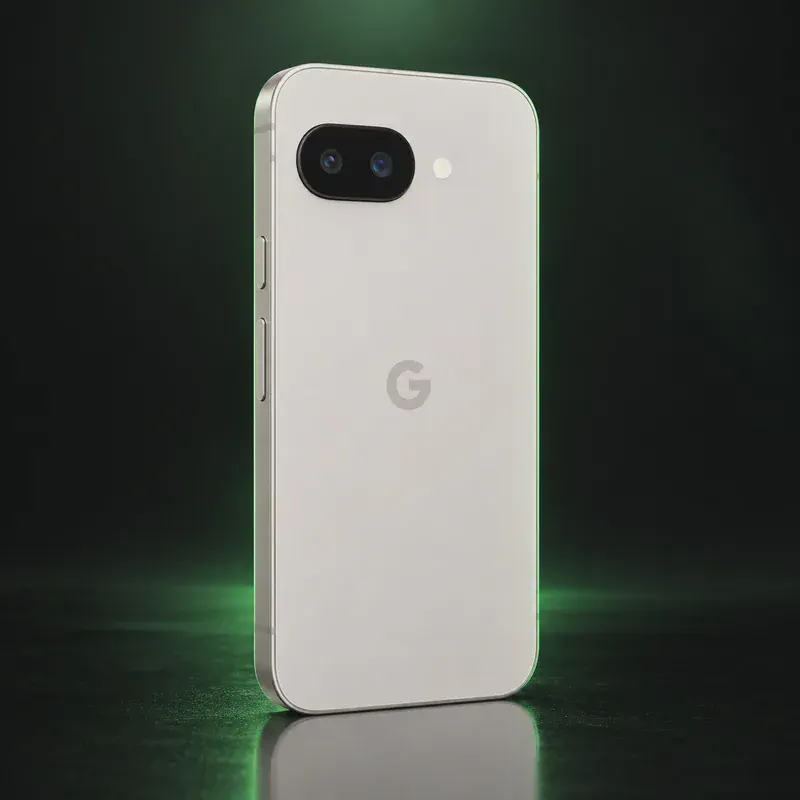
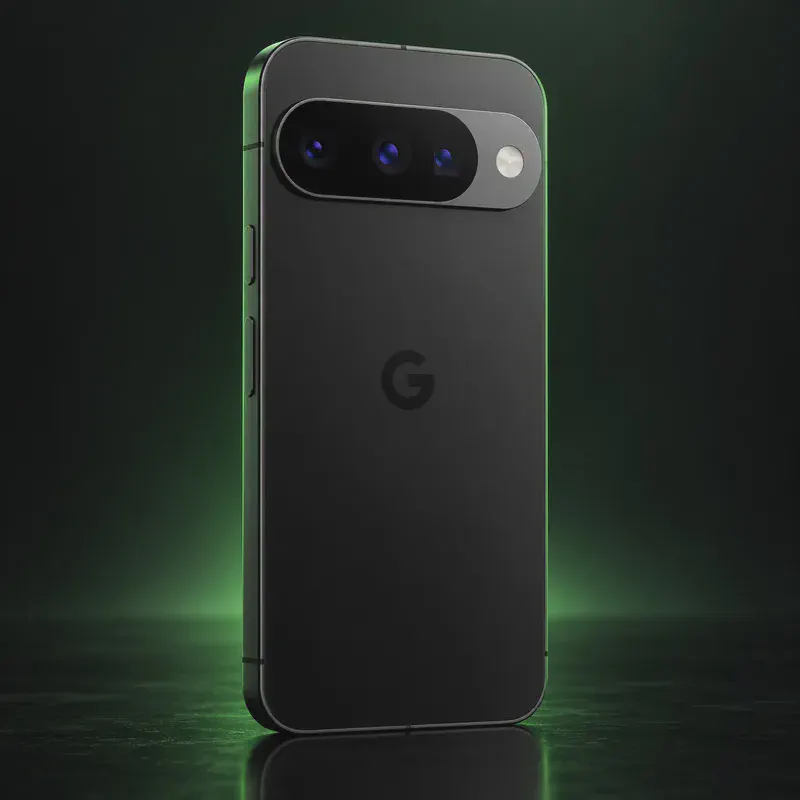
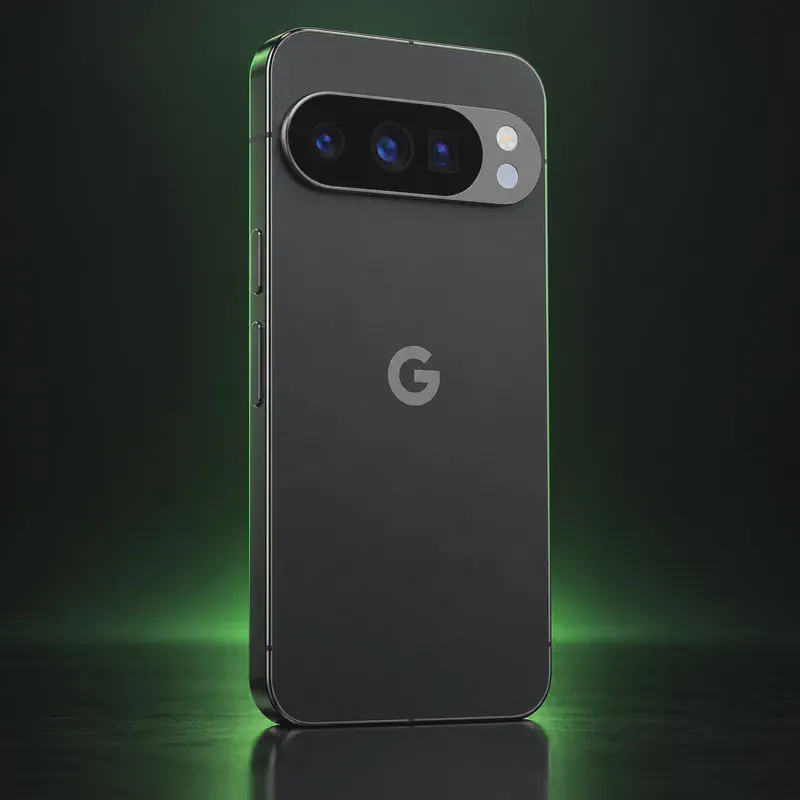
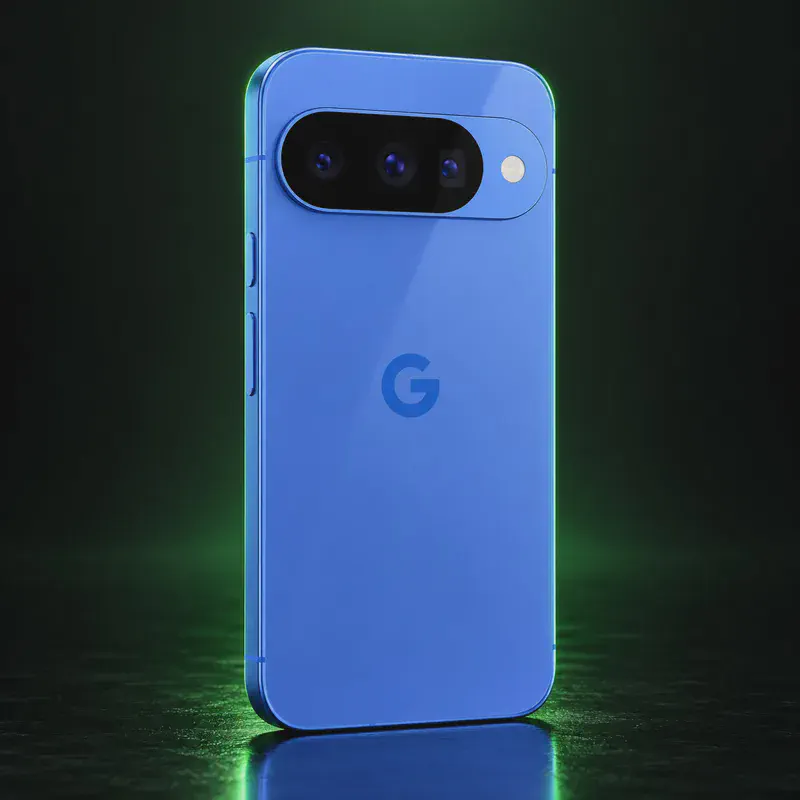
The Pixel 9a is Google’s 2025 mid-range phone, and on paper it is the easiest private phone to recommend at its price. It runs the same Tensor G4 chip as the Pixel 9, has a 6.3-inch 120 Hz screen, an IP68 rating and a 5,100 mAh battery. Google promises OS and security updates until April 2032, and that date matters more than any spec, because GrapheneOS and CalyxOS can only patch the phone fully while Google keeps shipping firmware.
For a privacy buyer the 9a has more options than almost any phone. GrapheneOS, CalyxOS, LineageOS and iodéOS all list it as officially supported, and /e/OS offers a community build. GrapheneOS and CalyxOS install from a web page and relock the bootloader afterwards, so verified boot keeps working. Google Wallet will not work on GrapheneOS, but some bank apps and Curve Pay (UK/EEA) can still handle tap-to-pay.
The trade-offs are modest. RAM is 8 GB, there is no telephoto lens, and wireless charging tops out at 7.5 W. Google now sells the newer Pixel 10a at the same $499, so check that you are getting a fair price for a 9a before you buy.
Google Pixel 9a tech specs
| Released | April 2025 |
|---|---|
| Display | 6.3-inch pOLED, 1080 × 2424, 60–120 Hz, up to 2,700 nits peak |
| Chip | Google Tensor G4 |
| RAM | 8 GB |
| Storage | 128 GB or 256 GB |
| Rear cameras | 48 MP wide (f/1.7, OIS) + 13 MP ultrawide (f/2.2) |
| Front camera | 13 MP (f/2.2) |
| Battery | 5,100 mAh typical (5,000 mAh minimum) |
| Charging | Up to 23 W wired; Qi wireless up to 7.5 W |
| Water/dust rating | IP68 |
| Weight | 185.9 g (6.6 oz) |
| Size | 154.7 × 73.3 × 8.9 mm |
| Headphone jack / microSD | No / No |
| Security chip | Titan M2 security coprocessor |
| SIM | Nano SIM + eSIM |
| Bootloader unlock | Yes on unlocked (non-carrier) units, via OEM unlocking |
| Launch price | $499 (128 GB, US) |
| Codename | tegu (used on OS download pages) |
Strengths and drawbacks
Private operating systems for the Google Pixel 9a
4 private systems officially support this exact model (codename tegu), plus one community build or port that works with less polish and slower fixes. The table compares them on the things that matter day to day; the install guides below walk through each one.
| System | Support | Privacy | Effort | Apps and Google |
|---|---|---|---|---|
| GrapheneOSGrapheneOS 2026100600 (Android 17) | Official | 10/10 | Easy · web installer, ~20 min | Sandboxed Google Play, optional |
| CalyxOSCalyxOS 8.0.4.21 (Android 17) | Official | 8.5/10 | Moderate · official flasher | microG, optional |
| iodéOSiodéOS 7 (LineageOS 23, Android 16) | Official | 7.5/10 | Easy · official installer app | microG + built-in tracker blocker |
| LineageOSLineageOS 24.0 (Android 17) | Official | 7/10 | Advanced · fastboot and recovery | No Google unless you add it |
| /e/OS/e/OS Android 16 community build | Community build | 7.5/10 | Easy · installer app, or preinstalled | microG built in + App Lounge |
- GrapheneOS: Fully supported with production builds; GrapheneOS lists April 2032 as Google's minimum support end for this model.
- CalyxOS: Listed as a modern device with OS and security updates planned to April 2032; bootloader is relocked after install.
- iodéOS: On iodé's official list with installer support and a relockable bootloader; it is still on Android 16 while the others have moved to 17.
- LineageOS: Official builds are current (October 2026); the bootloader stays unlocked, so you give up verified boot.
- /e/OS: Listed on the /e/OS device page as a community build (userdebug) with a bootloader that can't be relocked.
Not available for this model
- Ubuntu Touch: Not on the Ubuntu Touch device list (only older Pixels up to the 3a XL).
- Nura (postmarketOS): Has a postmarketOS wiki page but no working port; not usable as a phone OS.
- Sailfish OS: Sailfish OS is not offered for Pixel phones.
Privacy scores and effort levels are explained in how we score each system; the feature-by-feature OS table goes deeper.
Unlocking the bootloader on the Google Pixel 9a
Yes. Unlocked Pixel 9a units bought from Google or a retailer unlock in a few minutes with the OEM unlocking toggle and one fastboot command; carrier-locked units may not unlock at all.
- Update the stock OS, connect to the internet, then tap Settings > About phone > Build number seven times.
- Turn on Settings > System > Developer options > OEM unlocking.
- Power off, then hold Volume Down + Power to reach the bootloader.
- Connect to a computer and unlock with the GrapheneOS or CalyxOS web installer, or run fastboot flashing unlock and confirm on the phone.
- After installing GrapheneOS, CalyxOS or iodéOS, relock the bootloader from the installer, then turn OEM unlocking off in the new OS.
- Unlocking wipes the phone. Back up first.
- Carrier variants (Verizon in particular) block OEM unlocking. CalyxOS says Verizon Pixels can't install it.
- OEM unlocking needs an internet connection the first time so the phone can check its carrier lock status.
- Never relock with LineageOS or /e/OS installed; only relock on OSes that support it.
How to install a private OS on the Google Pixel 9a
Short versions of each project's official guide. Always keep the official page open while you work: it has the exact files for your model and changes faster than any summary.
Installing GrapheneOSEasy · web installer, ~20 min
What you need: A computer with a Chromium-based browser (Chrome, Edge or Brave), a good USB-C cable, about 20 minutes. Installing erases the phone, so back up first.
Apps: Sandboxed Google Play, optional: runs as an ordinary app with no special access. Bootloader: Yes, the installer relocks the bootloader.
- Update the stock Android first, then turn on OEM unlocking: Settings → About phone, tap Build number seven times, then Settings → System → Developer options → OEM unlocking (the phone needs internet once for this).
- Restart into the bootloader: turn the phone off, then hold Volume Down while pressing Power.
- Open the web installer on your computer, connect the phone, and click Unlock bootloader. Confirm on the phone with the volume keys and Power.
- Click Download release, then Flash release, and leave the cable alone until it finishes.
- Click Lock bootloader and confirm on the phone. Start it up, and turn OEM unlocking back off in Developer options.
- Optional: install sandboxed Google Play from GrapheneOS's own App Store if you need banking or other Play-only apps.
Installing CalyxOSModerate · official flasher
What you need: A Windows, macOS or Linux computer, a USB-C cable, and the CalyxOS device flasher plus the factory image for your exact model. Installing erases the phone.
Apps: microG, optional: a free re-implementation of Google services for push and maps. Bootloader: Yes on supported devices; the flasher locks it at the end.
- Download the device flasher for your computer and the factory image for your model from calyxos.org.
- On the phone, turn on Developer options and OEM unlocking (some brands need an unlock code first, see the bootloader section above).
- Restart into the bootloader (fastboot) mode and connect the phone.
- Run the flasher and follow its prompts. It unlocks the bootloader, flashes CalyxOS and locks the bootloader again.
- During setup, choose whether to turn on microG. You can change your mind later.
Installing iodéOSEasy · official installer app
What you need: A Windows, macOS or Linux computer, a USB cable and the iodé installer app. Installing erases the phone.
Apps: microG, plus a built-in tracker and ad blocker you can tune per app. Bootloader: On some devices; check iodé's device list.
- Check that your exact model is on iodé's supported device list.
- Download the iodé installer for your computer.
- Turn on Developer options, USB debugging and OEM unlocking on the phone, then connect it.
- Follow the installer step by step; it downloads the right build and flashes it.
- Set up the phone and look at the blocker settings in the iodé app.
Installing LineageOSAdvanced · fastboot and recovery
What you need: A computer with Android platform-tools (adb and fastboot) installed, a USB cable, and an evening. Follow the install page for your exact codename. Installing erases the phone.
Apps: No Google services by default; you add microG or Google apps yourself if you want them. Bootloader: Usually no: the bootloader stays unlocked on most devices.
- Find your phone's page on the LineageOS wiki by its codename and read the whole install guide once before you start.
- Make sure the stock firmware is the version the guide asks for, then unlock the bootloader the brand's official way.
- Flash the partitions the guide lists (such as boot, dtbo or vendor_boot) and boot into Lineage Recovery.
- In recovery, choose Factory reset → Format data, then Apply update → Apply from ADB, and run adb sideload with the LineageOS zip.
- Reboot. Add F-Droid for apps; skip the optional Google apps package if you want to stay degoogled.
Installing /e/OSEasy · installer app, or preinstalled
What you need: For a phone you already own: a Windows, macOS or Linux computer and a USB cable. The Easy Installer covers many models; others use a command-line guide on the device's page. Installing erases the phone.
Apps: microG built in, plus the App Lounge store that shows each app's trackers. Bootloader: stays unlocked with this build.
- Look up your exact model on the /e/OS device list and check whether it supports the Easy Installer.
- Download the Easy Installer (or the build and guide from the device page) on your computer.
- Turn on Developer options, USB debugging and OEM unlocking on the phone, and connect it.
- Follow the installer's screens: it unlocks, flashes /e/OS and, where possible, relocks the bootloader.
- Set up the phone. A Murena account is optional; you can skip it.
Who the Google Pixel 9a is for
Someone who wants the longest support for the least money and a free choice of private OS. It suits a first degoogled phone where battery life matters more than zoom.
Google Pixel 9a questions, answered
Can the Pixel 9a run GrapheneOS?
Yes. The Pixel 9a (tegu) is on GrapheneOS's official supported list with production builds. You install it with the web installer and relock the bootloader at the end.
How long will the Pixel 9a get updates?
Google's minimum is April 2032, seven years from launch. GrapheneOS says its official updates for Pixels usually end shortly after Google's support ends.
GrapheneOS or CalyxOS on the Pixel 9a?
Both support it officially and both relock the bootloader. GrapheneOS puts more weight on security hardening and sandboxed Google Play, while CalyxOS ships microG and is simpler to set up.
Sources
- Google Store — Pixel 9a tech specs
- Google Pixel Help — Pixel phone hardware tech specs
- Google Pixel Help — Pixel update schedule
- Google Blog — Pixel 9a launch ($499, April 10)
- GrapheneOS FAQ — supported devices and support dates
- GrapheneOS releases
- GrapheneOS web install guide
- CalyxOS install / device list
- CalyxOS device support timelines
- LineageOS wiki — tegu
- /e/OS — tegu
- iodéOS official supported devices
Every fact on this page comes from the maker or the OS project's own pages, checked October 14, 2026. We don't claim hands-on testing. Found something out of date? Report a correction.